

Are you searching for the Redmi K Pad firmware to unbrick, fix boot loops, or restore your device to factory settings? You’ve landed on the right page! Here, we provide the latest Xiaomi Redmi K Pad firmware flash files for the codenamed “turner” model. Whether you’re dealing with software issues, malware, or need to patch for root access, downloading the official Redmi K Pad stock ROM is the solution. We’ll also guide you through flashing it using the Xiaomi Mi Flash Tool on Windows, Mac, or Linux.
The Redmi K Pad, released in June 2025, is a powerhouse tablet with premium features. Keep reading for device specs, Redmi K Pad firmware advantages, download links, and step-by-step installation instructions.
Xiaomi Redmi K Pad Device Overview
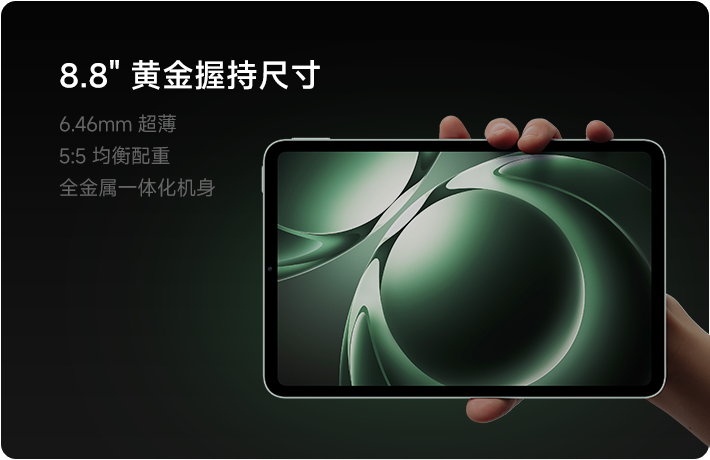
The Xiaomi Redmi K Pad (codenamed: turner) is a compact yet powerful tablet designed for gaming, productivity, and multimedia. Launched in June 2025, it combines flagship performance with an stunning display and long-lasting battery.
Key Specifications:
- Display: 8.8-inch IPS LCD with 68 billion colors, 165Hz refresh rate, HDR Vivid, Dolby Vision, and up to 700 nits (HBM) brightness.
- OS: Android 15 with HyperOS 2.
- Processor: MediaTek Dimensity 9400+ (3nm) chipset + Immortalis-G925 GPU.
- RAM & Storage: Up to 16GB RAM (UFS 4.1) and 1TB storage (no microSD slot).
- Cameras: 8MP front + 13MP rear (4K video recording).
- Audio: Stereo speakers with Dolby Atmos and Hi-Res audio (wired/wireless).
- Connectivity: Wi-Fi 7, Bluetooth 5.4, infrared port (no cellular, NFC, or radio).
- Battery: 7500mAh with 67W fast charging, 18W reverse charging, and bypass charging.
- Extras: Magnetic stylus support, dual USB Type-C 3.2 ports.
This tablet excels in multitasking and entertainment, making Redmi K Pad firmware updates essential for maintaining peak performance.
Why Download Redmi K Pad Firmware (Stock ROM)?
Flashing the official Redmi K Pad firmware resolves common issues and restores your device. Here’s why you should download and save the Xiaomi Redmi K Pad stock ROM:
- Unbrick Dead Device: Revive a bricked Redmi K Pad.
- Fix IMEI Issues: Repair using DB files from the stock ROM.
- Remove Malware/Adware: Clean infections completely.
- Resolve Boot Loops: Stop endless reboots.
- Fix App Crashes: Eliminate “Unfortunately, app has stopped” errors.
- Network Fixes: Restore connectivity problems.
- Root with Magisk: Patch boot image for superuser access.
- Unroot Device: Revert to stock for warranty or stability.
- Bypass FRP: Remove Google account locks.
- Factory Reset: Restore to original state.
Always back up data before flashing Redmi K Pad firmware to avoid loss.
| Item | Why it’s needed | Download / Action |
|---|---|---|
| Windows PC/Laptop | Mi Flash runs only on Windows (7/8/10/11). | – |
| Xiaomi USB Drivers | Allows PC ↔ device communication in Fastboot mode. | Download latest Xiaomi USB Driver |
| Mi Flash Tool | Official flashing utility for Fastboot ROMs. | Download Mi Flash Tool |
| Fastboot ROM for Redmi K Pad | The exact firmware package (.tgz). | Get it from Xiaomi’s official site or trusted mirrors (search “Redmi K Pad Fastboot ROM”). |
| USB cable | Original or high-quality cable for stable connection. | – |
| Battery ≥ 50 % | Prevents shutdown during flash. | Charge the tablet. |
| Full backup | Flashing wipes all data (including internal storage). | Use Settings → About tablet → Backup & restore or Mi Cloud. |
| Unlocked bootloader | Required for Fastboot flashing (factory-locked on most devices). | Follow Xiaomi’s official unlock guide (requires Mi Account + 7-day wait). |
Pre-Requisites for Flashing Redmi K Pad Firmware
Before downloading Redmi K Pad stock ROM or flashing:
- Confirm your device is Xiaomi Redmi K Pad (turner).
- Use a Windows PC/Laptop (Mi Flash Tool supports Mac/Linux via alternatives).
- Install latest Xiaomi USB Drivers for Windows/Mac.
- Download and install Xiaomi Mi Flash Tool (Fastboot method).
- Charge device to 50%+.
- Backup all data (photos, apps, contacts).
- Enable USB Debugging and OEM Unlocking in Developer Options.
Download Redmi K Pad Firmware (Latest Flash Files)
We host verified Redmi K Pad firmware files. Below is the Global Stable ROM for turner.
Global Stable ROM:
| Version | Download Link | Type | Changelog |
|---|---|---|---|
| OS2.0.205.0.VAOMIXM | Recovery ROM Download | Recovery | – System optimization for stability. – Fixed unexpected reboots. – Resolved errors in specific scenarios. – Security patch updated to August 2025 for enhanced protection. |
Note: Links are placeholders; replace with actual hosted files. Search for “Redmi K Pad firmware turner” for mirrors if needed.
For Fastboot ROM or older versions, comment below—we update Redmi K Pad firmware regularly.
How to Install Stock Firmware on Redmi K Pad (Turner)
Flash Redmi K Pad firmware via Recovery or Fastboot method using Mi Flash Tool. Follow our detailed guide for Xiaomi devices.
Method 1: Recovery Mode (Easiest for Beginners)
- Download the Recovery ROM from above.
- Transfer the ZIP file to your tablet’s internal storage.
- Boot into Recovery: Power off, then hold Volume Up + Power.
- Select “Install from storage” > Choose the firmware ZIP.
- Confirm and wait for installation.
- Reboot—your Redmi K Pad is now on stock ROM!
Method 2: Fastboot Mode (Using Mi Flash Tool)
- Download Fastboot ROM (extract to PC folder).
- Install Mi Flash Tool and USB Drivers.
- Boot tablet to Fastboot: Power off, hold Volume Down + Power.
- Connect to PC via USB.
- Open Mi Flash Tool > Select ROM folder > Choose “Clean all” (or “Save user data”).
- Click “Flash”—process takes 5-10 minutes.
- Device reboots automatically.
Troubleshooting Tips for Redmi K Pad Firmware Flash:
- Driver issues? Reinstall Xiaomi USB Drivers.
- Stuck in bootloop? Use “Clean all and lock” in Mi Flash.
- Error codes? Ensure authentic Redmi K Pad stock ROM.
For video tutorials, search “flash Redmi K Pad firmware Mi Flash Tool”.
Final Thoughts on Redmi K Pad Firmware
Downloading and flashing the latest Redmi K Pad firmware keeps your turner tablet secure, stable, and performant. Whether unbricking or rooting, official stock ROM is key.
Did this guide help install Redmi K Pad stock ROM successfully? Rate this post in comments! Share feedback, request more Redmi K Pad firmware versions, or ask questions—we respond quickly.
